Kling AI Free Video Guide: 66 Credits/Day, Best Image Quality Among Free Tools
Kling 3.0 delivers the sharpest video output of any free AI video generator. 66 credits daily, no credit card, image-to-video mode that crushes text-only. Here's exactly what you get for free and where the limits are.
How Many Free Credits Do You Actually Get
Kling AI's free tier is straightforward: 66 credits per day, reset automatically every 24 hours. No sign-up tasks, no daily check-ins, no credit card needed.
A 5-second clip costs roughly 10-15 credits; a 10-second clip runs 15-20 credits. That works out to 3-6 videos per day on the free tier — enough for daily content production if you're strategic about it.

How it stacks up against other free AI video tools:
- Kling AI: 66 credits/day, 5-10 seconds, up to 1080p
- Hailuo AI: 66-100 credits/day + 300 signup bonus, 5-6 seconds
- PixVerse: 60 credits/day + 90 signup bonus, 3-5 seconds
- Pika: ~50 credits/day, 3-5 seconds
- Luma Dream Machine: Limited free tier, pricier
Kling doesn't give the most credits per day (Hailuo's 300 signup bonus wins there), but it wins on image quality and 1080p support. If visual fidelity matters to you, Kling is the best free option.
Kling 3.0: The Quality Upgrade
Kling 3.0 is Kuaishou's latest video generation model, built on a fully upgraded multimodal architecture. Compared to the 2.x series, the improvements are noticeable in three areas:
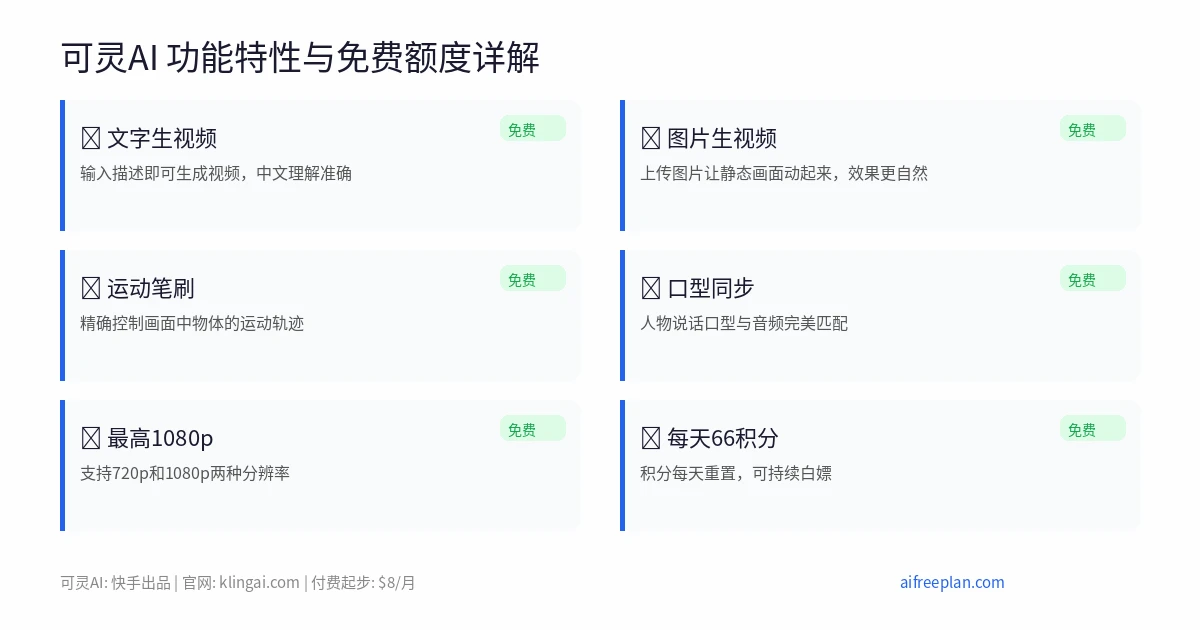
Sharpness: The 3.0 full version outputs at 1080p, and the detail improvement over 2.x is significant. Skin textures, hair edges, and light reflections all look more realistic. Among free tools, Kling's image quality is top tier.
Motion coherence: Complex movements are handled much better. I tested several scenarios:
- Walking: Natural gait, correct arm swing and weight transfer
- Pets running: Limb coordination stays consistent — no extra-leg horror movie moments
- Head turns: Facial distortion stays within acceptable range
- Camera movement: Pan/tilt/zoom transitions are noticeably smoother than 2.x
Chinese prompt understanding: This is Kling's hidden advantage. If you write prompts in Chinese, the output more accurately matches your intent than English prompts. This matters for users who think in Chinese — describe what you want in your native language and Kling gets it right more often.
Image-to-Video: The Best Way to Use Kling
This is Kling's strongest feature and the most underused one.
Text-to-video has high randomness — the AI fills in visual details on its own, and the result often doesn't match what you imagined. Image-to-video is different: you provide a photo and the AI animates it. Your control over the output is dramatically better.
Real comparison:
- Text-to-video: Prompt "a cat sleeping on a sofa" → random cat breed, random sofa color, random composition
- Image-to-video: Upload a photo of your cat on the sofa → cat stretches, yawns, looks exactly like your cat
My recommendation: always use image-to-video when possible. Take a photo you're happy with, then let Kling animate it. Higher quality, fewer wasted credits.
Free Tier Limitations
There are hard limits you should know about:
- Watermark: Free tier videos include a Kling watermark. This is the biggest limitation for production use.
- Duration: 5-10 seconds max. No long-form video on the free tier.
- Commercial use: Not allowed on free tier. Requires $8/month paid plan.
- Resolution: Free tier caps at 720p. The Kling 3.0 full version via specific channels reaches 1080p.
- Queue times: 1-2 minutes during peak hours. Paid users get priority.
For personal projects, creative testing, and social media posts, the free tier is more than enough. The watermark issue can be solved through the Kling 3.0 full version channels.

Tips for Getting the Best Results with Minimal Credits
Lessons learned from real usage:
1. Image-to-video first: A well-shot photo produces far better video than any text prompt. Kling's image understanding is strong — use it.
2. Be specific in prompts: Don't write "a person walking." Write "a woman in a red coat walking slowly under rain with an umbrella, camera tracking from the side." Specificity reduces randomness.
3. Test with short clips first: Don't burn 10 credits on a 10-second video right away. Generate a 5-second preview with 5 credits first. If it looks good, then extend.
4. Use start/end frames: Kling supports specifying the first and last frames. This gives you precise control over the video's start and end states, cutting randomness significantly.
5. Pick the right style preset: Kling has built-in style templates (realistic, anime, cinematic). Choosing the right one saves you from writing long prompts.
Kling vs Hailuo: Which Should You Pick
These are the two top Chinese AI video generators. Here's the simple decision framework:
Choose Kling when:
- Landscapes and product demos (sharper image quality)
- You need 1080p output
- You prefer Chinese prompts (Kling understands Chinese better)
Choose Hailuo when:
- People and motion-heavy scenes (dance, vlog, sports) — Hailuo's motion is more natural
- You want more free credits (66-100/day + 300 signup bonus)
- No credit card setup (Hailuo gives credits immediately on signup)
The smartest move: sign up for both. Kling's 66 + Hailuo's 66-100 = 130-166 free credits daily, enough for 5-8 videos. Learn more in the Hailuo AI free video guide.
For a full comparison of all free AI video tools, check the 2026 free AI video generation comparison.
How to Sign Up
Getting started with Kling AI takes about 2 minutes:
- Go to klingai.com
- Sign up with email or phone number
- Your 66 daily credits activate immediately
- Choose "Text to Video" or "Image to Video"
- Enter a prompt or upload an image, select style and duration
- Click Generate — results in 1-2 minutes
No credit card, no identity verification. The Kling 3.0 full version is also available for unlimited free 1080p watermark-free generation through specific channels.
Frequently Asked Questions
Is Kling AI free?
Yes. Kling AI gives you 66 free credits every day — no credit card required. The Kling 3.0 full version is also available unlimited and free through specific channels.
Does Kling AI free version have a watermark?
Official free tier videos include a Kling watermark. The Kling 3.0 full version via specific channels can produce watermark-free 1080p video.
How many videos can I make per day with Kling AI?
A 5-10 second clip costs about 10-20 credits. With 66 daily credits, you can generate 3-6 short videos per day. Using image-to-video mode saves credits.
Kling AI vs Hailuo AI — which is better?
Kling has sharper image quality and supports 1080p. Hailuo has more natural motion and more free credits (66-100/day plus 300 signup bonus). Choose Kling for landscapes and product demos; choose Hailuo for people and motion-heavy scenes. The smartest move is signing up for both.
Can I use Kling AI videos commercially?
Free tier content cannot be used commercially. You need a paid plan ($8/month) for commercial use rights.
What model does Kling AI use?
Kling AI is powered by Kuaishou's proprietary Kling 3.0 video generation model, supporting both text-to-video and image-to-video modes. It ranks among the top free tools for image quality and motion coherence.